Thursday, January 18, 2018

THE NOVEL PROJECT

This year I had a somewhat crazy idea.  I decided all of my grade 9 English students, as part of my ELA course, were going to write a novel.  This idea originated by reading a post by George Couros on Medium entitled - "Would you read what your students write if you weren’t paid to do so?"  and it got me thinking.  Could my grade nine students write an entire novel?  How would it fit into my teaching outcomes?  How much time would it take? And slowly a plan began to form. 

Anyone who has taught English or Language Arts, for any length of time, has read a lot of student writing.  When I taught grade three I learned all about Pokemon, hockey, Lego, and many other topics through student writing.  Sometimes it was painful.  A topic I wasn't that interested in and beginning writers is sometimes a brutal combination.  In grade nine English the students are more capable writers, for the most part. But the student writing is piecemeal, a few paragraphs about a character, an analysis of a novel, a poem, an essay on a random topic.  I could correct grammar and make editing suggestions but was a short piece of writing actually reflective of their capabilities?  If I challenged them what could they do?  My idea for writing a novel was born.  

When I announced at the beginning of the year that we would be writing a novel and that they should start thinking of ideas even though we wouldn't be starting for a few months the reactions were varied.  Some students just ignored me, some students actually started to plan, and a few dove right in with no reservations.  In fact when our project on the novel "The Outsiders"  took a little longer than planned one student repeatedly asked when were we starting the novel?

Finally in January we began.  We started with a character sketch.  After all good novels have good characters.

Wednesday, October 24, 2012

Creating A Book Trailer

I created book trailers with my grade six class early last year. Below are the steps we followed.


1. Choose a book.

2. Answer the five basic 'W' questions and how. My student planning sheet looked like this:

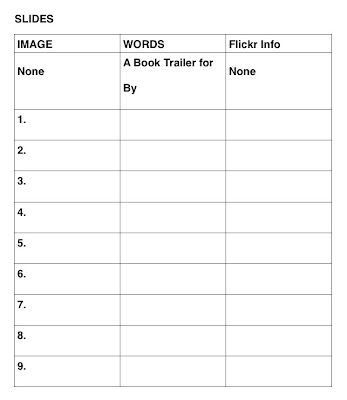
3. Pick 9 important events in your book's plot using your W question answers for reference. Make sure not to include the ending of the book. I tell the students this is like an advertisement for a book. Below is the document the students used to record their plans.
 

4. Choose an image that represents each point and one picture of the cover of the book.

At this point we went on the computers and went to www.flickr.com to find our pictures for the images. I insist that students go to Advanced Search in Flickr and choose the Creative Commons option. When they find an image that works the student must choose at least the Medium 640 size option or the pictures will be pixelated. See the difference of quality in the videos below.

First Version

Second Try

I also require students to save the name of the photographer for their credit page. Here is how I evaluated.  As this was a part of a computer class I evaluated on the skills needed to create the video, if this had been a Language Arts project then the evaluation would have been more focused on those outcomes.


5. When the students found all their images then we used Live Windows Movie Maker to create our trailers. In our division the students could not use pictures saved to a drive on the computer for Movie Maker so we used USB sticks. The students saved all their images to their USB stick before they started.  Movie Maker is a fairly easy program to use.  Students sometimes found that captions stayed on the screen over two pictures so they needed to adjust the length of time each picture was shown. In Movie Maker students may type out their captions or record them. My students did not record their voices.

6. Finally students chose music. We used a royalty free music site called  Incompetech
It allowed students to choose by genre. The music is all instrumental, I believe, and comes in various lengths. The students needed a piece of music that was around one minute long. Students could preview the different pieces and then downloaded the one they wished to use. They needed to make sure it was downloaded to their USB stick. The students again needed to adjust their slide lengths so the music played through the entire trailer. The students also needed to credit the music they picked on their credits slide. Below is an example of a finished Book Trailer using Movie Maker:


7. I did this project later with my grade three class and they used PhotoStory. I had them record their voices as part of their projects but they used the create your own music feature instead of finding royalty free music. Also, they put their photo credits on each slide instead of at the end.  Here is an example of a Book Trailer done in PhotoStory:


8. Finally, when the trailer is complete you should save it at the highest quality possible. Then you can upload it to YouTube to post on your class or school website.


Tuesday, October 23, 2012

Setting Up Our iPads

I found that setting up our iPads was a bit of a one step forwards, two steps back proposition, in that some things I had read should be done for safety are not practical for a class set.  Below are the steps I used to set up our iPads.

1. I created a hotmail e-mail account for each classroom teacher.

example:  unitypublicschoolgrade6@hotmail.com

2. I set-up an AppleID for each classroom teacher using the above accounts.  You can set-up an account without a a credit card if you download one free app and when asked for credit card information you choose the none option.  It is fully explained at the How-To Geek blog. The students will not be given the information for this account just the homeroom teacher.

3. Each class has a cart with a mini Mac for syncing at school so I (or the classroom teacher) downloaded our recommended apps (see my previous post) and then I synced the teacher's iPad with the cart.

4. I added all the student's school pictures to the syncing station in the iPhotos section and added them to the classroom teacher's iPad.

5.  Next I synced all the student iPads.

6.  On each student iPad I:
           a) set-up the student's e-mail account (we have school division accounts provided for each student) 
           b) set-up iCloud using the classroom AppleID and password (I found it works more often if you click sign-in and not return) and okayed Find my iPhone
           c) I added the students' pictures as their screen backgrounds by going to Brightness & Wallpaper in settings and clicking on the wallpaper arrow and then going to Photo stream and choosing the picture and finally setting to Both (in the upper right corner)
           d) In General I went to Restrictions and I did the following:  -->
                   i) enabled restrictions by adding a four digit code – I used the same one for all the school iPads
                   ii) in ALLOW: I turned off the bottom 5 FaceTime, iTunes, Ping, Installing Apps, and Deleting Apps
* I realized later I shouldn't have turned off Installing Apps because you can't sync new apps with that turned off so I ended up turning it back on.
                   iii) in Allow Changes we set LOCATION to Don’t Allow Changes
 * I originally turned this off for safety reasons but I realized later I shouldn't have done this because you need the location turned on for a variety of apps to work, so I ended up allowing changes. As all of our iPads are for students in a school I don't really think it is a security problem as anyone can find our school without too much difficulty.
                   iv) in RATINGS Allowed Content I made the following changes to the settings:
                         Ratings For:  Canada
                         Music & Podcasts:  Clean
                         Movies:  G
                         TV Shows:  G
                         Apps:  All

At this point the iPads were more or less ready for the students.


iPad Apps - Kid in a Candy Store

        In June 2012 my staff decided to become a one-to-one school using iPads as our device as choice.  My next step was to decide what apps we should put on each iPad.  I spent many hours pouring over lists of recommended apps and curriculum topics and outcomes to arrive at the following lists:

The Basics for Everyone in Grades One to Six  
Pages (Inkpot with pen) $9.99 - word processing
Keynote (Podium with papers and mic)  $9.99 - slide presentations
Book Creator (book with scissors on tiedye background) $4.99 - can create a book with text, illustrations and audio which may be uploaded to iBooks
Accelerated Reader (blue with white stripes) FREE - allows students to take book quizzes but not to do Star Reading tests (yet)
Show Me Interactive Whiteboard (Show Me on screen) FREE - can create slideshows/video like presentations
Google Earth (blue and white earth) FREE - reference
Rover (skateboarding dog) FREE - allows iPad to play Flash sites
i-nigma (iphone - orange and red pattern) FREE - QR code reader
NearPod Teacher & Student  (orange/blue nearpod) FREE (2 apps)  - a student response systemwith limited storage - extended storage expensive and has an annual fee
Teacher Kit (t on green chalk board)  FREE  - attendance, grades, behavior recorder and tracker
Evernote  ( elephant on green) FREE - bookmarking system
DropBox  (blue box icon) FREE - storage of documents 
Typing Fingers (student and keyboard) FREE - keyboarding
iPaint (paint can) $0.99 - drawing app
DrawFree for iPad (paint pallet and brush on black)  FREE - drawing app
Stop Motion Studio (colorful camera on clapboard) $0.99 - digital storytelling
Animations Express (name on clapboard) FREE - digital storytelling
Puppet Pals (clouds in front of curtains) FREE - digital storytelling

Apps for Grades K – 3
BrainPOP Jr. Movie of the Week (Moby & Annie)   FREE - reference
Audiboo  (iphone purple microphone) FREE - audio recording
Chicktionary (three chickens)  FREE - word game
Dinosaurs:  The American Museum of Natural History Collections (T-Rex skull skeleton) FREE - dinosaur reference
Fotobabble  (f in red speech bubble) FREE - record audio for a photo
Four in a Row (2 orange and 2 blue circles) FREE - strategy game
Math Tappers:  Find Sums  (iphone symbol on green) FREE - Math
Math Tappers:  Numberline  (iphone symbol on green) FREE - Math
LinguPingu  – English French/Francais Anglais (penguin) $1.99 - French
NFB PixStop  (words) FREE - digital storytelling/video creator
NG Word Builders  (abc blocks) FREE - phonics and spelling
Phonics Genius (words) FREE - phonics
Scribble Press  (scribble on orange) FREE - book creator
Sock Puppets (sock puppet on green background) FREE - lip-sync video creator
Story Wheel (student with book and grad cap) FREE - story game
Virtuoso  Piano Free 3 (piano keyboard) FREE - piano
Word Wall HD (card and title) $1.99 - reading
Learning A-Z (Rooster)  FREE - reading
Rocket Speller  (rocket ship) FREE - spelling game
Doodlecast  (cat) $1.99 - drawing with audio recording
Image Chef (typewriter and flower) FREE - photo and video fun
Sentence Builder (green with name) $5.99 - helps build grammatically correct sentences
Language Builder (yellowish green with name) $9.99 - helps build grammatically correct language with auditory playback and audio clips
Audiobooks (book with earbuds) FREE - over 5000 free audio books

Grades 4 to 6
iMovie (Star on brown background)
Garage Band (Guitar)  $4.99
BrainPOP Featured Movie (Moby) FREE - free educational videos
The Star Phoenix (Black SP on blue) FREE - Local Newspaper
SaskTel Rider App (Green Rider Logo and SaskTel) FREE - Provincial CFL team
Tourism Saskatchewan HD (camping scene) FREE - Provincial information
Tap Quiz Map World Ed (map and words The World) FREE - Quiz of place names
Podcasts (white microphone on purple) FREE - a podcast player
Stack The Countries Lite (happy face on a globe) FREE - a geography game
Wordventure! (Red W and !) FREE - a MadLib type game
SimpleMind+ (teardrop) FREE - mind mapping
FunWithWords (green name on black) FREE - MadLibs type game
NASA App (White NASA on blue circle) FREE - official NASA app
Unblock Me (orange and red rectangles on brown) FREE - logic game
Dictionary.Com (white D in circle with rays) FREE - dictionary
Evernote (elephant on green) FREE - bookmarking system
Atlas for iPad (white atlas over map) FREE - atlas
Voicethread (black vt in white circle on black) FREE - collaborative recorder
Sudoko Finger Arts (S on scrabble tile 2) FREE - daily sudoko puzzles
Image Chef (typewriter with pink flower) FREE - photo editor and picture creator
Draw Something (yellow pencil on blue) FREE - Pictionary type game
Angry Birds HD (red angry bird) FREE - game using physics and math skills
Words With Friends HD (W on yellow tile) FREE - word game

      Out iPads are going to travel with the students up through the grades so I had teachers install the first apps above on all the iPads and then I had the bottom two lists specific to each division.  Teachers were also encouraged to add any apps they thought might be useful.  Each teacher was given a $50 iTunes card, paid for by the school, to purchase those apps that came at a cost. 


Wednesday, August 29, 2012

iPads vs Netbooks: The Journey Towards One-to-One

        I teach at Unity Public School, which is a pre-kindergarten to grade six school of approximately 175 students. At the start of the 2011-12 school year we had one computer lab of 22 Dell desktop computers and 1 data projector, one cart of 26 older Dell laptops, one cart of 19 newer Dell laptops, 4 Smart Boards (3 in the grade one, two, and three classrooms and 2 in open classrooms), 2-5 desktop computers in the grade three to six classes, 1 document camera, and 3 black & white printer/copiers, and 1 colour printer. Our teachers also all had a Dell laptop of varying vintages. Our students in grades one and two received a computer class for one (half hour) class in a six day cycle while grade three to six received two (half hour) classes in a six day cycle.

      Then we started our journey of becoming a one-to-one school, one device for every student, by getting iPads for most staff members and Netbooks for those who already had a personal iPad. All devices were provided by the Living Sky School Division. Over the course of the 2011-12 school year our teachers did a series of investigations and projects centered around technology, pedagogy and the intertwining of the two. This allowed staff to become familiar with a device and we also had enough iPads to do small group projects within our classes. In June we had to make two decisions. Firstly, if we wanted to become a one-to-one school and secondly, if so what device would we choose for our students' use.

       Our teachers decided we would like to become a one-to-one school but choosing the device took a little more thought. Here were some of the pros of each device . .
 
Netbooks 
*great keyboard size for small hands
*our tech support people were familiar with them and could fix problems
*able to print from the device
*familiar programs such as word, power point, photo story
*right click feature

 iPads
 *variety of apps available
 *superior battery life over the course of a school day
 *student & staff engagement

and here were some of the cons:

Netbooks
*battery life did not last a whole school day
*screen was small and difficult to read

 iPads 
*could not print to school network
*no right click feature
*keyboards could be purchased but would be an extra cost
*cost of apps
*no trained tech people for fixing problems

        After some debate we decided to go with iPads and starting in September 2012 the Living Sky School Division is providing each student in grade one to six with an iPad for in-school use. Pre-K and kindergarten decided to go with a mix of 1/3 iPods and 2/3 iPads, also provided by the division.  It will be an exciting journey that I look forward to starting.

Photos from www.flickr.com by myracing221 and sucelloleiloes.

Tuesday, July 5, 2011

Hard Goals vs Smart Goals

I'm attending the Saskatchewan Principal's Short Course and yesterday our first keynote, Gwen Keith spoke on "The Multiple Roles of the Principalship." One item of interest was an introduction to HARD goals. SMART goals are the ones I'm familiar with where the goal is:
Specific
Measurable
Attainable
Realistic
Timely.

Gwen mentioned that SMART goals are for management and HARD goals are for leadership. A HARD goal is:
Heartfelt (something you are passionate about)
Animated (you can picture the end result)
Required (necessary for survival)
Difficult (require learning new skills)

I think that HARD goals are great for technology implementation because you always have to learn something new. I'm in the process of developing one for our One-to-One project this fall. To decide if a goal meets the criteria you can go to this site and take the supplied quiz.

I also found this Globe and Mail article on the topic interesting!

Thursday, October 14, 2010

Sharing What I'm Doing

Just watched Dean Shareski’s “Sharing: the Moral Imperative” talk and realized I have not blogged in a long time. So thought I should update you on what I’m currently doing in my school.

The grade 5 and 6 students just watched the opening two episodes of Degrassi: The Next Generation that deal with the main character, Emma, meeting a “16 year old boy” Jordan on-line. She is 12 years old and thinks Jordan is cute and into many of the same things that she is. When he tells her he is coming to her city on a school trip, even though it is summer, she agrees to meet him. Her friends tell her it is a bad idea but she lies to them and sneaks away. At the hotel she meets Jordan’s “teacher” who lures her up to the room to join the boys for pizza. When she arrives at the room she realizes the teacher is actually Jordan. Luckily, her friends hack into her e-mail, showing how some passwords can be easily guessed. They discover that “Jordan” must have also figured out her password and has been reading Emma’s e-mails and then sending her messages that seem like he can “see into her soul.” They also discover the hotel where she agreed to meet Jordan and they let Emma’s mom know and in the nick of time Emma is rescued and “Jordan” arrested. As the police take away her computer, as evidence, the officer warns the mom to keep the computer downstairs so the cyber-stalkers can’t get into her daughter’s bedroom.

I’ve shown these two episodes annually for the past 5 or 6 years. I bought the DVDs for about $60.00 and it was one of the best investments I’ve made. The story is relevant, well acted, and quite riveting plus, it sparks great discussion among my students as to who they can trust on-line, the dangers of meeting someone they only know on-line, how a person can pretend to be someone else on line, where a computer should be kept at home, what you should tell your Mom and Dad, creating strong passwords and who should be allowed to know your passwords. In this day and age where most of the students in grades 5 and 6 have a Facebook account it also leads nicely into privacy settings and what it is safe to post on-line. We are following up this discussion with sessions on the “Passport to the Internet” site.

Wednesday, November 4, 2009

Glogster Fun

I played with Glogster and created the following:

I'm thinking that this will work well for my grade four's final French project on television.

Sunday, October 18, 2009

Moshi Monsters


Moshi Monsters is a fun little site that my grade five students showed me. You can adopt a monster, out of six choices, give them a name, and customize their colours. Then you are given a house for your monster from which you can contact friends, play puzzles to earn Rox, and exit to go out into the town. To keep your monster happy you need to play with it, feed it, and decorate its house. You can also acquire moshlings who seem to be pets for your monster. To earn Rox for food and accessories you play puzzles. The puzzles are logical, Math, or word puzzles. To register you need an e-mail address and then you choose a user name, your age, your country, and a name for your monster. The site seems quite secure as you have to send a friend request to other monsters before they can chat with you. The chat of course needs to follow Internet Safety rules, and I'm not sure if it's monitored by the site but I think it probably is. My students are quite happy to do the puzzles to keep their monster happy. A good way to get them thinking.

Saturday, August 8, 2009

Universal Design Learning - Carolyn Staudt at BLC09


“The goal of this project is to use UDL principles to create practical science materials for students and teachers in inclusive classrooms. The project will create inquiry modules around the theme of energy.” It is free to sign up and I created a Living Sky School Division group so anyone else in the Division can add your own school as you register. It was developed with funding from the NSF and the data from all students who use the units is collected, collated, and studied. Classroom teachers are also able to see exactly how their students performed in different sections of the unit.

It has units set up for grades 3-6 on the topics of friction, electricity, plants, and clouds. Beginning units are labeled blue and are for grades 3-4 and intermediate units are labeled gold and are for grades 5-6. Each unit uses Inquiry based science experimentation. Lessons take (30-45 minutes each) and units include technology, science, a related math project, and a related reading project. You download the installer and the units. They are designed to work with very little bandwidth necessary, and graphics and so on load very quickly.

Each unit includes a lab notebook and students can pull the results from their experiments and put them in their notebook for their final presentations. During a lesson if a student clicks on a word they are asked to tell what they think it means and then they are given the correct definition. The words are then recorded in the student's personal glossary. Words can be clicked on and the computer will say them aloud. Interestingly, records showed that students don't use text-to-speech unless they are at the top of their group - over achievers.

The units also have a Smart Graph feature and when students use sensors which provide data it is then graphed. Questions about the graphs are given to students and the questions are accompanied by scaffolding to determine the answer, which includes a series 5 levels of clues. Teachers are able to adjust the scaffolding as they see fit.

Each unit starts with a pre-test and then follows through the ideas of:

engage
explore
explain
evaluate

Through modeling - students can create items such as an electric circuit, and do experiments such as determining which surfaces have more friction than others.

The students can login at home or school so parents can view what is occurring.
I'm hoping to try the electricity unit with my grade six class this fall.

Wednesday, August 5, 2009

BLC 25 Ed Tech Leaders

Interestingly enough this is one session I didn't make it to but thought looked interesting. The slide show below gives you more ideas for people you may want to add to your PLN.

Tuesday, July 28, 2009

SCRATCH SESSION at MIT


I went to a great session at MIT on Scratch this morning, Monday, July 27th. It was run by several of the program developers, a graduate student, several programmers, a teacher who is currently using Scratch, and a professor Mitchel Resnick. The lab at MIT is really interesting with a large elephant balloon in one corner, a replica of the Millennium Falcon made out of gold Lego hanging from the ceiling, a massive mural, and stations with a variety of toys. The idea is that this lab is a Lifelong Kindergarten where the Kindergarten spirit to build, design, and create is kept alive. Scratch was developed with this principal in mind as it allows creation and sharing of interactive games, stories, and animations made by students.

Students need to think creatively, reason symmetrically, and work collaboratively. The students use a creative learning spiral which goes imagine, create, play (experiment), share (receive suggestions and critiques from other users), reflect (how could they change/improve their project), re-imagine, recreate, and so on. Students can download other student’s projects and remix and repost them or borrow parts for their own projects. We were shown some of one 13 year old girl’s (My Red Neptune) projects and she is very good at drawing and creating animations and other students have even requested that she create specific animations for their projects.

To create in Scratch is easy and difficult. They described it as like snapping Lego blocks together. There are different components like Moves, Sounds, and Controls. For example you pick a Sprite (character) from a gallery of pre-made ones, by drawing your own, or taking a picture from a camera or the Internet. Then you create a script for that Sprite. This can be simply asking it to move to music when clicked on or you can have the Sprite ask a question and then set up an IF – THEN - ELSE loop to tell if the correct answer was inputted. It is a good way to reinforce logical thinking as the Sprites do exactly what you tell them.

The Scratch website is 2 years old and nearly ½ million projects have been shared. One of the current focuses of the Scratch team is to help teachers use Scratch in classroom settings. As part of this project we were asked to develop a project to do with mapping. A book was shared to show that maps could be done in a variety of forms and ways such as mapping your heart, your family, your day, your vacation, and so on. I chose to do a map for Ma Famille, something I could have students do in grade three.

To begin I stole pictures off of Google, sorry Donna, and put them in a house. I’d have students scan pictures of their own family members or draw people, probably draw as it would be safer re-identity but more labor intensive. When you clicked on each picture a speech bubble appeared telling who they were in French, I think I would have the students record who each person was but I didn’t have a microphone. When I was done then I experimented by changing it into a game, Smart Board applications. I set it up so that when you clicked on a picture it asked who it was and the student would type in the name in French and the program would either say they got it correct and respond in a sentence or tell them to try again. You can see my efforts by clicking here.

If you are interested further you can check out more example created by grade five and six students at the Tech Examples Wiki. Their teacher said one neat tie in to Internet Safety occurred when the students took digital pictures and made a presentation on themselves and their likes and dislikes. She said it led to valuable discussions about what permissions you needed when putting up pictures of your friends, when you were giving out too much personal information, and so on. The presentation was awesome and I think I’ll have to get our techs busy downloading Scratch onto the machines at school.

Sunday, April 26, 2009

Teachable Moments

We had our School Community Council annual meeting the other evening. There were, I believe, equal numbers of staff members to council members and we actually had two new parents who were nominated. Yeah! We actually have a very active SCC and they have accomplished a lot since their creation two years ago. The meeting was the usual review of the year and elections with one twist. We have two Smart Boards installed at the moment and one, possibly two, to be installed in the near future. One SCC member asked if there was a way we could showcase these new tools so parents and grandparents could see exactly what they were and how they were useful. The discussion went on and it came to light that although the SCC has done fund raising for Smart Boards most of them had never touched one. So, I volunteered to get one up and running and let them see exactly what all the fuss was about.
As they finished their meeting I set-up my laptop and loaded up a few of my French lessons using Notebook10 and then I decided while I had a captive audience I'd show them the You Tube video on A Vision of K-12 Students. They watched the video and most of them tried the French games. I showed how them how they could write or type on the board, highlight things temporarily with the smart marker, draw shapes, and so on. The SCC members were really interested so then I kept going and showed them their son's and daughter's blogs, a power point the grade one class had done, and finished up with a quick intro to Quest Atlantis. It was so neat to see their excitement and to have them see the future possibilities for education. It was a teachable moment. Now we just have to plan the parent and grandparent open house we are putting on in May. ;)

Sunday, April 19, 2009

PhotoStory

I made a video to explain to my students how to create a PhotoStory. I thought I'd share it here:

Monday, March 9, 2009

What Makes a Good Blog Entry?


Today I found a post on Remote Access that addressed what the author, Clarence Fisher, thought a good blog entry should contain. He included the following four points, which he had shared with his students to improve their blog entries:
"1.) A post needs all of the standard elements of writing.
2.) A quality blog post includes several good links to further sources of information that people can travel to.
3.) A quality post includes multimedia elements such as pictures, video or audio.
4.) Finally, a blog post needs to have an interesting title that will bring in readers."
I found this very interesting as I had never thought in these terms before. I've been working on the fact that a blog post simply shares an idea. I really like these four points. Will I include them in every blog post, probably not, but it is certainly something for which to strive. Has anyone else found a different criteria for what makes a good blog entry?

Picture from Flickr

Wednesday, February 25, 2009

Why Teachers Will Never Win Oscars


I enjoy the Oscars. I like to see what everyone is wearing, who everyone brings with them, the opening monologue/song, the dance number, and of course who wins and what he/she then says in his/her speech. This year, as in many previous, I wondered what I would say if I won an Oscar. Except, I wouldn't win it for acting or directing I'd win it for Best Teacher or Best Lesson Plan or Best Use of Technology in the Classroom and it dawned on me I wouldn't win. It is not that I am not a good teacher or that I don't have good lessons but rather that other than my students no one witnesses me do it. Teaching for all the professional development and PLC's is done in isolation. My students may think I'm great, or not, but who can they compare me to in that particular year. I teach a single grade, or a single subject, and the students have no one to compare me to at that specific time. Even the supervisors who come into my classroom don't really see enough to judge me worthy or unworthy. Usually a teacher knows in advance when someone is coming to observe him/her and he/she plans more, warns/threatens his/her students, and picks a lesson to showcase his/her talent. If a supervisor arrives unannounced he/she may see a lesson but more than likely he/she will see students working on an assignment or project. Maybe with the advance of Web 2.0 tools and global collaboration an Educational Oscar could be possible. Teachers would need to create a video of their best lesson and post it on the World Wide Web. The best would be nominated. Then members of the Academy would vote. The possibilities and technology are there. I wonder if enough excitement could be generated to make this happen? How would our Education System have to change to make this a reality? Maybe I will have to start worrying about what I would say in my speech and oh, of course, what I would wear.

Photo from Flickr

Monday, January 26, 2009

Technology in the White House

During all the pre-inauguration hoopla one thing, which caught my attention was that Barack Obama was going to have to give up his Blackberry. Apparently all presidential correspondence has to be archived for future generations. Also, there was apparently some worry over what might be intercepted by hackers. I liked the fact that Mr. Barack was unwilling to give up his e-mail opportunities to communicate with family and friends. When asked by CNN's John King whether he would have to give up his device

Obama responded. “….I think we're going to be able to hang onto one of these. Now, my working assumption, and this is not new, is that everything I write on e-mail could end up being on CNN. So I make sure that — I think before I press ‘send.’”

It makes me think this is the lesson we're trying to teach our students. Think before you post something on Facebook, think before you e-mail something, think before you publish something on the Internet. What a wonderful role model Mr. Obama will be for today's generation.

Web 2.0 technologies give us the chance to create, to share, and to connect around the world. According to Tina Brown, during the presidential campaign the web savvy Mr. Obama could:

deploy his web army to distribute his leaflets, raise his funds and sell his policies, he could speak directly to them whenever he hit a snag.

Here is a world leader who wants to be able to connect with friends and former co-workers who can give him immediate feedback on his decisions and new ideas. Isn't this what we're trying to teach our students?

Mr. Obama's whole election campaign was widely debated using blogs and other tools. My Dad had me take him on a tour of Mr. Obama's blog and explain why a tool like this was useful and powerful. It is a new way of thinking for older, and even not so old generations. Is it second nature to our students? I'm not sure it is yet, not for all of them, but the possibilities are there and they are endless.

Wednesday, January 7, 2009

My Mobster Nickname

I found a fun blog The Generator Blog, which has tons of links to websites which generate fun things. Below is my Mob Nickname which was generated at Nicknamester.

Friday, January 2, 2009

Seven Things You Probably Don’t Know About Me

This post is in response to being tagged by Donna. Of course the title is dependent upon who is reading this but I’ll go with the idea that most of you are professional colleagues I’ve only known for a short time.

1. I used to buy a lot of books but now only buy a handful each year, teaching materials not included. I have not stopped reading but now prefer to patronize my local library. I request a lot of books and read most of them. The books I buy now are ones, which I’ll read over and over. Other than gifts the last major purchases were the “Twilight” series by Stephenie Meyer and “Brisinger” by Christopher Paolini. Ironically, kids, my niece and a student, spurred both purchases.

2. While I buy fewer books my purchases of DVD’s is increasing. In a rough calculation I own about 300 books and 125 DVD’s, plus probably 125 VHS videos. Over the holidays I bought about seven DVD’s including Season 4 of “Lost” and “Mamma Mia”. The second one doesn’t really count as a purchase though as was a present from my Mum.

3. Yes, I did spell Mum with a “u”. I’ve always spelled it that way. I think it has to do with my Dad’s Scottish background. On that note I only met two of my parent’s parents. My Mum’s Mum and my Dad’s Dad both died before I was born.

4. I never considered not attending university and was part way through my first year before I realized that not everyone actually went to university. I’ve attended three universities so far. I spent my first year at the University of Georgia when we lived in Athens on a sabbatical year. I actually studied Business there but one accounting class convinced me to go into Education. I finished my BEd and my Masters at the University of Saskatchewan. While studying for my BEd I also spent one year at the Universite Canadienne en France in Villefrance-sur-mer, near Nice on the French Riviera. I lived with a French family for my second term and had a wonderful year.

5. I’ve taught in six different schools. I started teaching grades 7, 8 and 9 in Senlac, spent two years teaching English in 3 Junior High Schools in Japan, returned to Senlac, moved to teaching grades 1, 3, 4 and 5 at a Hutterite Colony for one year, and finally ended up teaching grade 3, Computers, and French at Unity Public School.

6. I’ve traveled a fair bit in Europe, Asia, Australia, North America, and a little bit in Northern Africa. Some of my favourite trips were with my Mum. She brought a backpack and two Eurorail passes when she met me at the end of my year in France. We had an awesome trip around France, Italy, Greece, Turkey (by accident), Yugoslavia, and Germany. We also had a super tour around Hong Kong and China. We make each other laugh and that is a very good trait to have when traveling.

7. My most unusual Christmas was spent in the Okefenokee Swamp. On Christmas day we canoed by trees covered in that hanging Spanish moss and a variety of alligators. For Christmas dinner we had a meal cooked, by my Dad, on our Coleman stove and we spent the night in out tent trailer. It was fun and oh so us.

I think I'm supposed to tag some fellow bloggers so here goes:
Michael
Mavis
Alison
Priscilla
Byrna
Terrel
James
Mark

Sunday, December 28, 2008

Everyone Knows Your Name


I came across this excellent video on a blog called Langwitches - The Magic of Learning through Technology. They have some other good stuff on their blog too, so check it out.